
Starting your Windows PC and getting stuck on the “Welcome” screen can be frustrating. If you turn on your PC expecting a quick login, but instead, the loading circle keeps spinning endlessly – don’t worry! Whether you’re using a Windows 10 or Windows 11 PC, there are several reasons, such as corrupted system files, faulty updates, startup conflicts, etc., why such an issue might occur.
Fortunately, you can fix this problem without being a technical expert. In this article, we’ll explore some quick and easy fixes that you can try to fix PC stuck on the Welcome screen. Let’s get started!
Why Does PC Get Stuck on the Welcome Screen?
Before jumping to different solutions to fix your PC stuck on the Welcome screen, it’s important to understand the root cause of the issue. Some prominent reasons include:
- Corrupted or missing system files
- Incomplete or faulty Windows updates
- Slow startup programs
- Driver conflicts or outdated drivers
- Issues with the user profile
- Disk errors or low storage
- Malicious programs like viruses or malware
Identifying the exact cause can help you determine the right fixes.
How do I Fix PC Stuck on the Welcome Screen?
Once you encounter the issue, it’s important to wait for 5-10 minutes, as if the issue is temporary, it will be fixed automatically. After that, you can proceed with adequate repair fixes.
In this section, we’ve outlined some quick workarounds that you can try to fix Windows PC stuck on the Welcome screen:
Method 01: Restart Your PC Properly
Let’s start with the simplest fixes first! Sometimes, a simple restart can fix your PC stuck on the Welcome screen by resolving temporary glitches. To restart your PC:
- Press and hold the power button for 5–10 seconds.
- Keep waiting till your system turns off completely.
- Wait for 30 seconds and then restart your PC.
This clears temporary memory issues and refreshes the system.
Method 02: Reboot in Safe Mode
Safe Mode starts Windows with minimal drivers and services. Sometimes, third-party drivers and applications conflict with Windows and cause errors while starting your PC. Follow the below steps to restart your computer in Safe Mode:
- Firstly, force shut down your PC 2–3 times during startup.
- Power on your computer and when the Windows sign-in screen appears, press and hold down the Shift key. Choose Restart from the Power menu.
- When your PC reboots, you’ll get a “Choose an option” window. Choose Troubleshoot > Advanced options > Startup Settings > Restart.
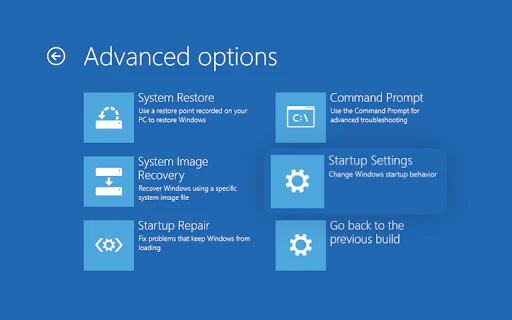
- Now, from the several restart choices, press F5 on your keyboard to enable Safe Mode with Networking.
- Wait for your system to restart and see if it boots successfully.
Method 03: Disconnect all External devices
Your external storage devices sometimes interfere with startup and may keep your PC stuck in the Welcome screen. In such a case, you can remove any USB devices that are connected to your computer and restart them to check if it fixes the issue.
You can remove USB drives, external hard disks, printers, and Bluetooth devices from your PC and then restart it. If your PC boots normally, one of the devices is causing the issue.
Method 04: Disable Fast Startup
Fast Startup enhances your PC’s speed during boot time, but it can sometimes create conflicts during startup. This may cause your system to freeze or get stuck on the Welcome screen. Disabling this feature can help resolve such boot-related issues. All you have to do is:
- Firstly, boot your system in Boot mode.
- Type CP in the search box of your PC and launch the Control Panel.
- Go to Power Options, then click “Choose what the power buttons do” from the left pane.
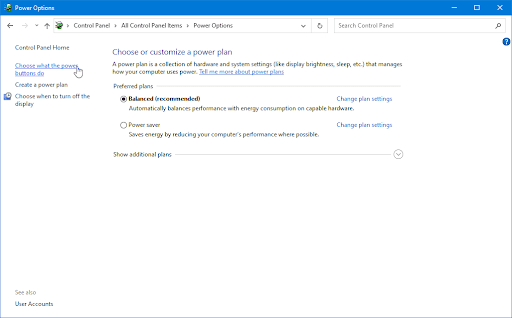
- Now, click “Change settings that are currently unavailable” and then uncheck the “Turn on fast startup” option.
- Save the changes and then restart your PC to check if the issue is resolved.
Method 05: Run the System File Checker
Corrupted system files can cause major issues like boot loops. The System File Checker (SFC) is a built-in Windows tool that detects and repairs these files. You can follow the below steps to run Windows’ SFC on your PC:
- Reboot your computer and press the F8 key during startup to enter the Windows Recovery Environment (WinRE). On some devices, you may also need to press the Fn key.
- From the Choose an option screen, navigate to Troubleshoot > Advanced options > Command Prompt.
- Now, type the command: sfc /scannow and press the Enter key.
- Wait for the System File Checker to complete the scan. If it finds any issues, it will automatically repair the system files and fix related errors.
What If Data Loss Happen While Fixing Startup Issues?
Instances may happen when you lose important files and folders from your Windows PC while applying the aforementioned fixes. In such cases, you can use third-party free data recovery software such as Stellar Data Recovery Free to get your lost files back. This all-in-one recovery tool supports recovery of files deleted due to several reasons, including accidental deletion, storage formatting, unexpected system failures, etc.
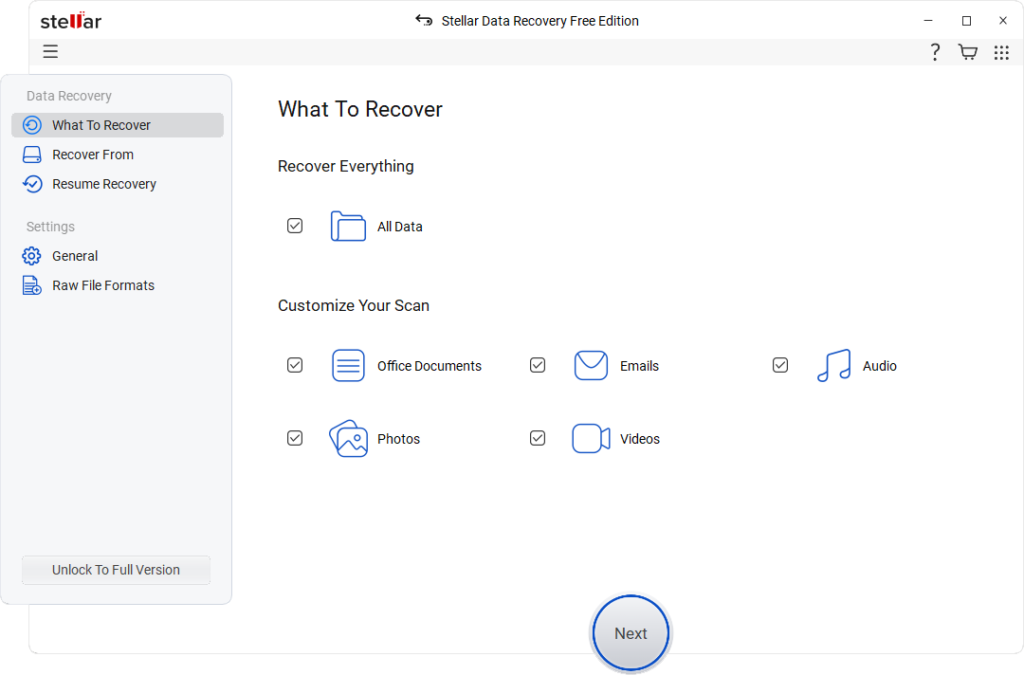
You can use the Stellar data recovery free software to restore deleted data of various types, such as photos, videos, documents, emails, etc. The free version supports data recovery of up to 1 GB of files for free. To restore files of a larger size, you can upgrade to premium versions. This free data recovery software also lets you preview the recoverable files before restoring them.
Conclusion
A PC stuck on the Welcome screen can be annoying, especially when you need urgent access. However, in most cases, the issue is caused by software glitches, corrupted files, or startup conflicts. Irrespective of these causes, you can easily fix such issues on your Windows PC by trying simple fixes such as moving to Safe mode, performing an SFC scan, or system restore, etc. In extreme cases, resetting the PC will definitely solve the issue.
However, if you encounter data loss issues on your Windows PC, try third-party free data recovery software like Stellar Data Recovery Free. The key is to act quickly and follow the steps in order. With the methods shared above, you should be able to fix the problem and get your system running smoothly again.
FAQs
Why is my PC stuck on the Welcome screen for so long?
This issue usually occurs due to corrupted system files, excessive startup programs, problematic Windows updates, or conflicts affecting the system boot process.
Is it safe to force shutdown my PC?
Occasional force shutdowns are generally safe, but doing it frequently can harm system files, leading to errors, instability, or boot issues.
Will resetting the PC fix the issue permanently?
Resetting your PC can fix most system issues, but selecting “Keep my files” ensures your personal data remains safe during the process.
Looking for more Article? Check out my website for the latest content.